

Guides
How to White Out Text in a PDF for Free (and When You Should Redact Instead)
Cover a typo, date or number in any PDF and type the correction, free and without uploading your file. Plus the one thing whiteout does not do, and how to handle sensitive data.
By the Pixytool team · · 4 min read
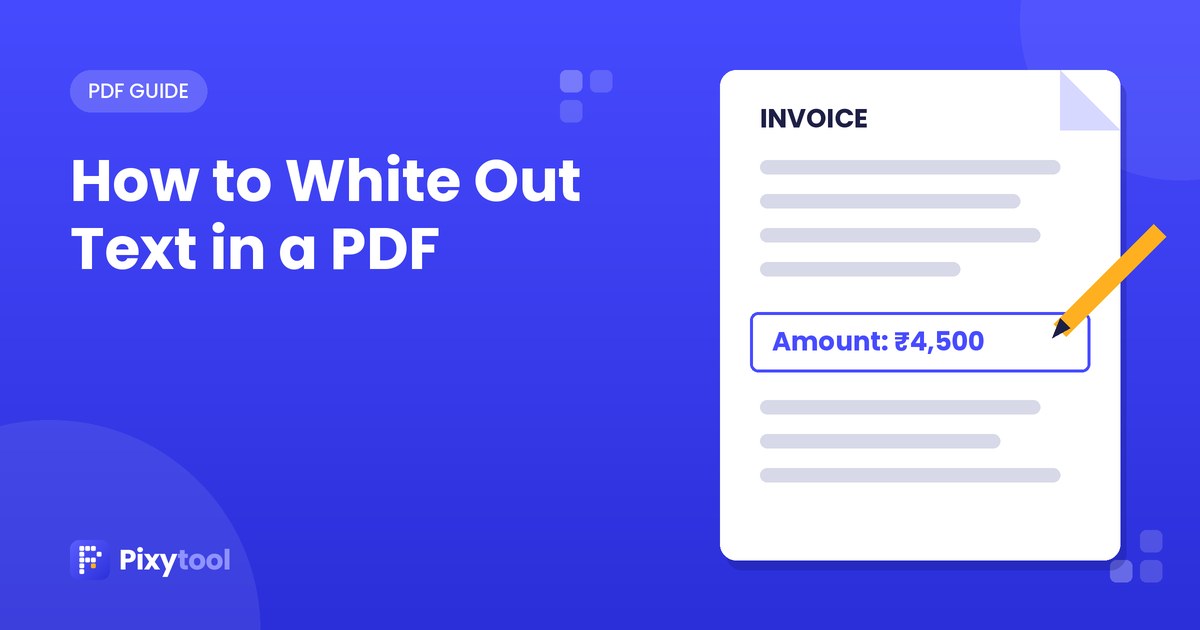
You have a PDF with one wrong detail: a typo in a name, an old date, a price that changed. You don't have the original Word file, and you don't want to buy software for a two-second fix.
Whiting out the text and typing the correction on top is the quickest solution. This guide shows how to do it for free in your browser, and explains the one important thing whiteout does not do.
What does "white out" mean in a PDF?
Whiting out a PDF works like correction fluid on paper. A white rectangle is drawn over part of the page so that whatever is underneath is hidden when you view or print the document. You can then type new text on top of the white area.
It is perfect for:
- Fixing a typo, date or amount on an invoice, letter or certificate
- Reusing a PDF template by covering old details and typing new ones
- Hiding page numbers, headers or handwritten notes before sharing
- Cleaning up a form so you can fill it in again
How to white out text in a PDF (step by step)
- 1Open the free Whiteout PDF tool.
- 2Upload your PDF. It is loaded in your browser, not sent to a server.
- 3Choose the page that has the text you want to cover.
- 4Position the white box with the horizontal and vertical sliders, then adjust its width and height until it covers the text completely. A simple page preview shows roughly where the box will sit.
- 5Type replacement text (optional) to place the correction on top of the white box.
- 6Download the corrected PDF.
Need to cover something on several pages? Run the tool again on the downloaded file for each extra page.
Whiteout vs redaction: the important difference
This is where many people get caught out. Whiteout hides content visually, but it does not delete it. In most PDFs the original text is still in the file underneath the white box. Someone can often:
- Select and copy the hidden text
- Find it with the search function
- Reveal it by removing the box in a PDF editor
That is fine for fixing a typo. It is not fine for hiding sensitive information like bank details, ID numbers, salaries or medical data before sending a document to someone else.
| Whiteout | Redaction | |
|---|---|---|
| What it does | Covers content with a white box | Removes the content from the file |
| Original text | Usually still in the file | Permanently gone |
| Good for | Typos, template updates, cosmetic fixes | Sensitive or confidential information |
How to remove sensitive text for good (free method)
If you need the hidden text to be really gone, use this free workaround:
- 1White out (or black out) the sensitive text with Whiteout PDF.
- 2Convert the result to images with PDF to JPG. Each page becomes a picture.
- 3Turn the images back into a PDF with JPG to PDF.
The new PDF contains only images of the pages, so the original text under the box no longer exists in the file. The trade-off is that the text is no longer selectable or searchable, and the file may be larger.
For legal or regulated documents, use dedicated redaction software that your organisation approves.
More things you can do with the PDF Editor
Whiteout is also built into the free PDF Editor, alongside other quick edits:
- Add text anywhere on a page
- Sign the document by drawing your signature
- Add page numbers to every page
- Stamp a watermark such as "Draft" or "Copy"
To type or upload a signature instead of drawing it, use Sign PDF.
Tips for a clean result
- Make the box slightly bigger than the text so no letter edges peek out.
- Check the background colour. Whiteout works best on white pages. On coloured or patterned backgrounds the white box will be visible.
- Keep replacement text short so it fits inside the box.
- Open the downloaded file and zoom in before you send it.
Why do it in your browser?
Invoices, contracts and forms often contain personal details. Many online PDF editors upload your file to their servers to process it. Pixytool's PDF tools run inside your browser, so your document stays on your device, and there are no page limits, daily limits or sign-ups.
Frequently asked questions
How do I white out part of a PDF?
Open a whiteout tool, upload your PDF, choose the page, move a white box over the area you want to hide, optionally type new text on top and download the corrected PDF.
Is whiteout the same as redaction?
No. Whiteout covers content with a white box, but the original text usually stays in the file and can be copied or searched. Redaction removes the content permanently.
How can I permanently remove text from a PDF for free?
White out or black out the text, then convert the PDF pages to images (PDF to JPG) and turn the images back into a PDF (JPG to PDF). The new PDF contains only pictures of the pages, so the hidden text is gone.
Can I white out a PDF on my phone?
Yes. Browser-based tools such as Pixytool’s Whiteout PDF work on mobile browsers as well as on desktop.
Is it safe to white out a PDF online?
It depends on the tool. Many online editors upload your file to their servers. Pixytool’s PDF tools process the file in your browser, so it never leaves your device.
Free tools from this guide
Whiteout PDF
White out text in a PDF and type a correction over it. Free, unlimited, and the file never leaves your browser.

PDF Editor
Edit PDF files in your browser: add text, white out mistakes, sign, add page numbers and watermarks, with no page or daily limits
JPG to PDF
Convert JPEG, PNG, and camera photos into a clean multi-page PDF document
Sign PDF
Sign a PDF online for free. Draw, type or upload your signature, drop it on the page and save — nothing is uploaded.